
ImmortalWRT and OpenClash Router Setup Guide (Netcore N60 Pro)
Opening a proxy client, waiting for it to connect, and checking that it works is repetitive on every device. Moving policy routing to the router can let phones, computers, tablets, televisions, and consoles use one managed network path. Router-level tools can also centralize DNS policy and filtering.
This guide translates the original hands-on procedure for a Netcore N60 Pro. It installs ImmortalWRT and then OpenClash. Other models, hardware revisions, bootloaders, flash layouts, and firmware images can require completely different steps.
Before writing flash
The mtd write command below is destructive and model-specific. Do not copy it to another router. First verify the exact model and hardware revision, the current /proc/mtd mapping, image checksums, partition names, serial or programmer recovery method, and a complete off-device backup. A wrong image or partition can permanently brick the router.
What a configurable router changes
The central idea is to run policy-routing software at the network exit so downstream devices do not each need a separate configuration.
- Typical consumer router: often uses a restricted stock system and cannot install arbitrary routing packages.
- OpenWrt-capable router: runs an extensible Linux-based system and may install packages, containers, or custom network services when hardware resources allow.
The original walkthrough uses a Netcore N60 Pro because a compatible ImmortalWRT build and community procedure were available for that unit. ImmortalWRT is an OpenWrt-derived distribution with its own packages, defaults, localization, and hardware support. Use another distribution if it has better official support for the exact device.
Preparation
The original installation took about 30 minutes in a successful run. Recovery can take much longer.
Prepare:
- a router whose exact model and hardware revision have a documented installation and recovery path;
- an Ethernet cable—do not flash firmware over an unreliable Wi-Fi link;
- a terminal with
sshandscp; - the subscription or configuration that will be imported after the router works;
- independent storage for backups;
- stable power, ideally with protection against interruption.
If you still need to evaluate a provider, begin with the proxy-service review list.
1. Obtain the U-Boot image
U-Boot is the bootloader used to initialize the device and load firmware. Writing the wrong bootloader can prevent normal recovery.
The Chinese source used this community thread: right.com.cn forum thread 8328967
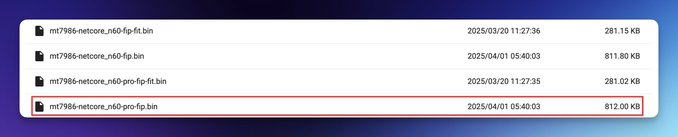
For its Netcore N60 Pro, the downloaded filename was:
mt7986-netcore_n60-pro-fip.binThat filename is not sufficient proof that the image matches a particular unit. Check the thread's current instructions, hardware revision, file hash, trusted source, and recovery reports.
2. Obtain the ImmortalWRT firmware
The source used the ImmortalWRT Firmware Selector. Search for the exact router model and select the image type required by the model-specific installation procedure.
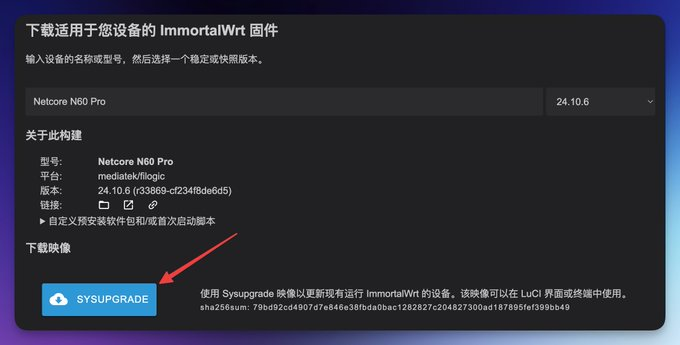
Before continuing, record a cryptographic checksum for every downloaded file and compare it with a trusted published value where one exists.
Step 1: connect by Ethernet and enable SSH
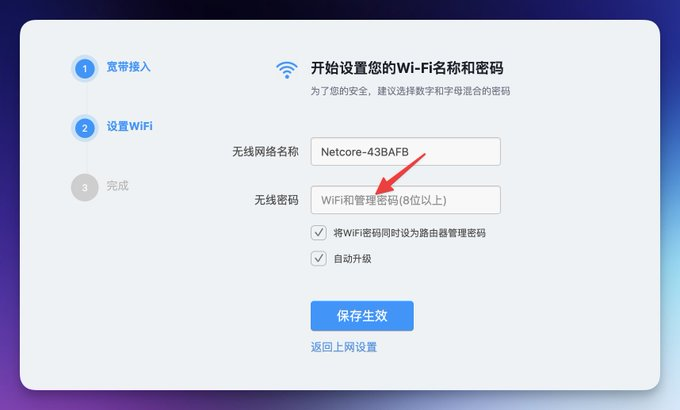
- Connect the computer directly to the router by Ethernet and power on the router.
- For the source's stock Netcore firmware, open
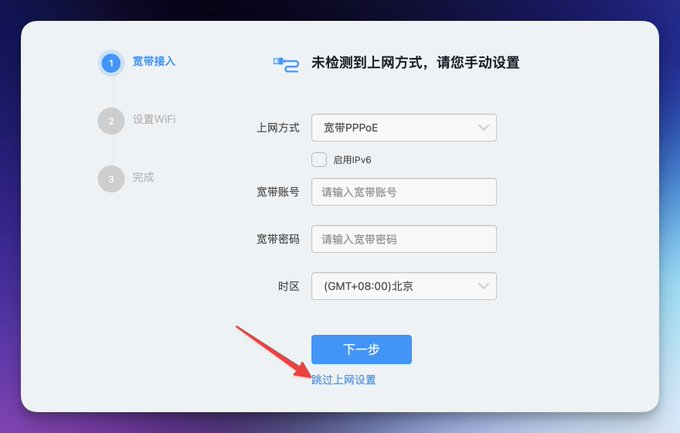
192.168.0.1. - Skip the Internet-setup wizard if that is appropriate for the isolated flashing network.
- Set a strong, unique administrator password.
- In the stock interface, open
Applications → Remote Accessand enable SSH.
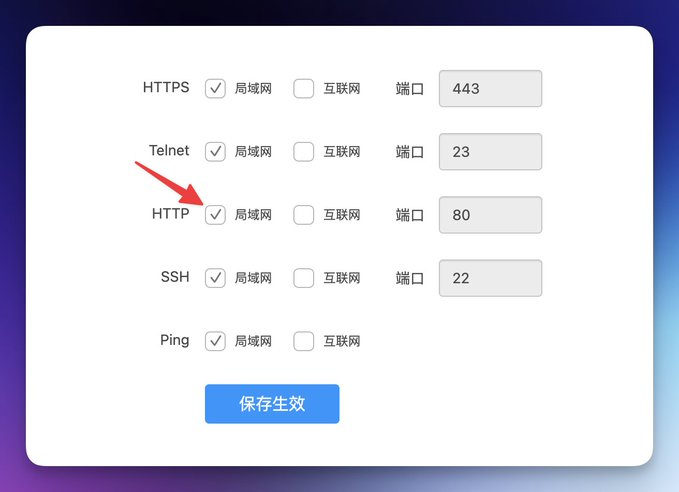
Keep this isolated from an untrusted network while SSH is enabled.
Step 2: inspect and back up the stock flash
The source logs in with:
On first connection, verify the displayed host-key fingerprint through a trusted local channel before accepting it. Enter the administrator password when prompted; terminals normally do not display password characters.
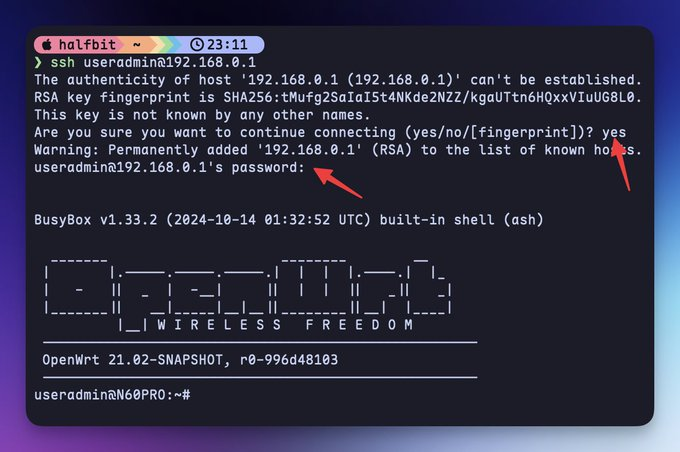
Inspect the actual flash layout:
cat /proc/mtd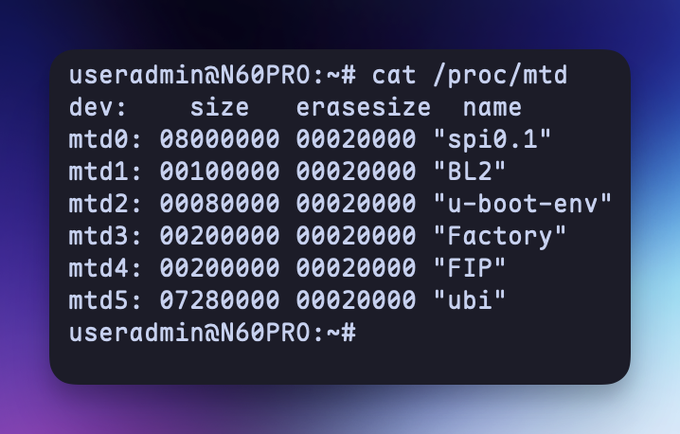
Save the actual /proc/mtd output and verify the model, hardware revision, partition names, and sizes. The OpenWrt N60 Pro support commit requires backing up all MTD partitions before flashing. The device guide lists mtd0–mtd5, with BL2, environment, Factory, FIP, and UBI at mtd1–mtd5 respectively. These numbers are only a cross-check, not a layout to assume on another device or revision.
Follow the exact device's procedure to back up every partition in its actual map. BL2, environment, Factory, and UBI alone are incomplete: FIP must also be backed up before the next step overwrites it. Verify the tool's read method and available storage; do not put the entire backup in /tmp if it lacks space. Stop before writing if the layout differs, any read fails, or any partition is missing.
The Factory partition can contain device-specific radio calibration data and may not be reconstructible. Back it up. Let large reads finish; do not interrupt power.
In the N60 Pro reference layout used here, mtd5 is UBI; use the actual device's partition table for its size. Allow enough storage and time for larger reads to finish.
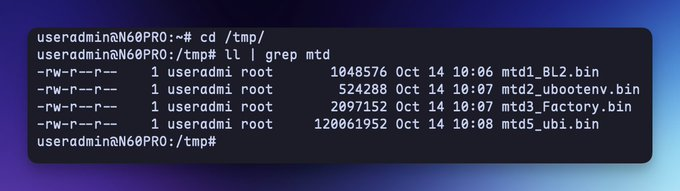
Open a new terminal on the computer, not the interactive router shell, and copy the backups off the router:
scp -O [email protected]:'/tmp/mtd*' ~/Downloads/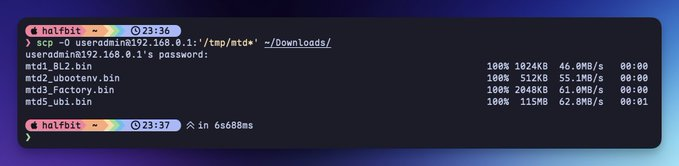
The SCP example copies only /tmp/mtd*; export any files saved elsewhere as well. The old screenshots show only some files and are not a complete backup checklist.
Then:
- list the copied file sizes;
- compare SHA-256 hashes before and after copying off-device;
- compare sizes with the MTD table;
- open or inspect the files with an appropriate flash-analysis tool;
- store at least two copies outside the router;
- document which physical unit and hardware revision produced them.
A file merely existing is not proof of a usable backup.
Step 3: write the model-specific U-Boot image
This is the highest-risk step. Confirm the exact filename, checksum, hardware revision, and FIP target again. Continue only after every partition's off-device backup has been verified and the device-specific recovery requirements are understood. A backup does not remove the risk of writing the bootloader.
From the computer terminal, the source uploads its image:
scp -O ~/Downloads/mt7986-netcore_n60-pro-fip.bin [email protected]:/tmp/From the router's SSH shell, the original procedure writes the FIP partition:
mtd write /tmp/mt7986-netcore_n60-pro-fip.bin FIP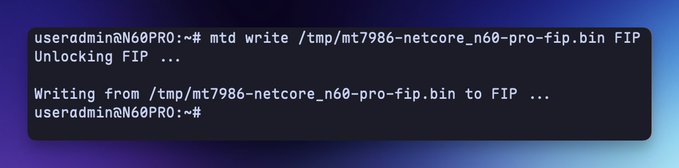
Do not proceed merely because no error is printed. Check the command exit status and the model-specific verification method. Do not write FIP unless /proc/mtd and trusted documentation confirm that target on this exact unit.
Step 4: install ImmortalWRT from U-Boot recovery
The following records the bootloader version used on the source's N60 Pro. It requires a functioning bootloader that supports this web recovery method. Reset timing, address, and availability depend on the installed version; damaged BL2/FIP may prevent recovery this way. Verify that version's recovery requirements first and do not apply these steps if they differ.
- Confirm that writing and verification have finished and no update is running, then disconnect power according to the installed bootloader's instructions.
- Press and hold the recessed Reset button.
- Reconnect power while continuing to hold Reset.
- After about 10 seconds, release Reset.
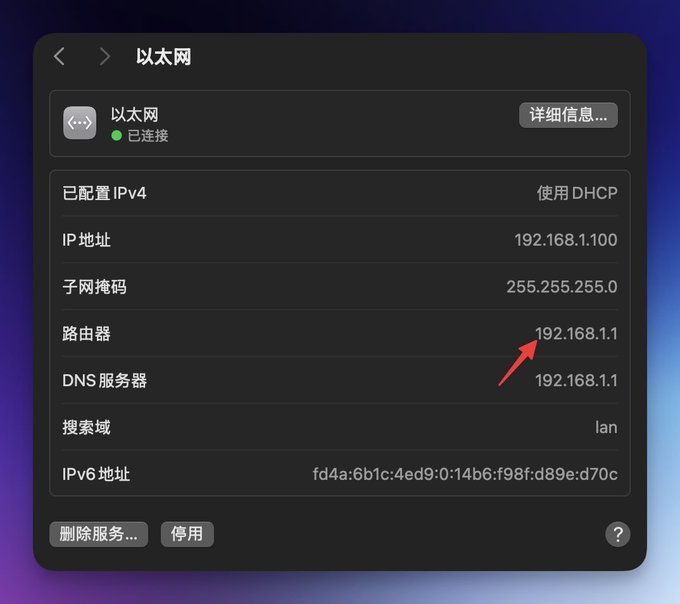
- Confirm recovery mode has started. Connect to the isolated router network and open
192.168.1.1only if that address matches the installed version's documentation; stop and check the instructions if recovery does not start. - In the U-Boot recovery page, select the exact matching ImmortalWRT image.
- Start the update and do not interrupt power or network access.
Recovery-button timing and address are bootloader-specific. Use the instructions for the installed bootloader if they differ.
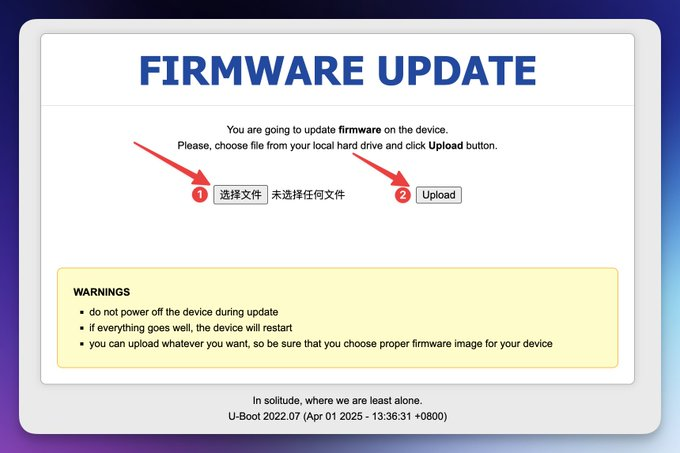
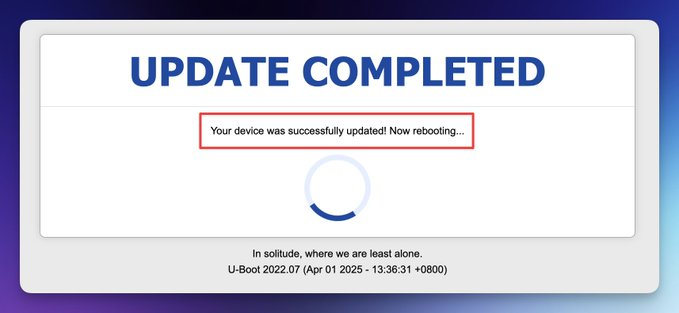
A green success page only reports that the web update succeeded; it does not verify booting, networking, or all device functions. Follow the installed version's instructions, wait for a complete reboot, and verify administration access, network connectivity, and required functions. A browser success message alone is not permission to remove power immediately.
Step 5: secure networking and install OpenClash
1. Sign in to the new interface
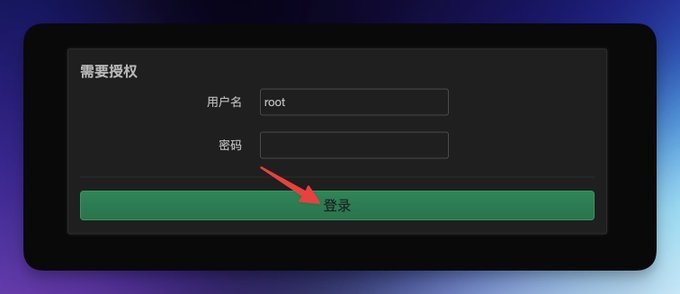
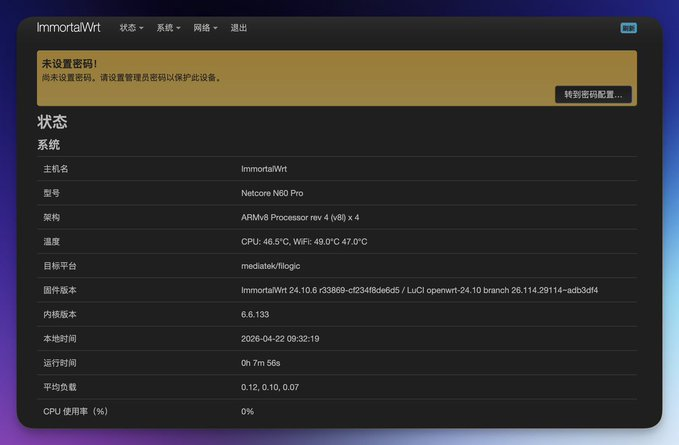
After reboot, the source opens 192.168.1.1, the common default for this ImmortalWRT build. The first login had no password.
Immediately set a strong administrator password. Disable or restrict remote administration and SSH when they are no longer needed.
2. Configure upstream network access
Two common layouts are:
- Primary router: connect the modem or optical network terminal to the WAN port and configure the required DHCP, PPPoE, or provider settings.
- Secondary router or wireless repeater: connect behind an existing router and preserve more of the current topology.
The source uses wireless relay: open Network → Wireless, enable the radio, select the 5 GHz band, scan for the existing Wi-Fi network, and enter its password. Set secure 2.4 GHz and 5 GHz SSIDs and passwords if the device will also provide Wi-Fi.
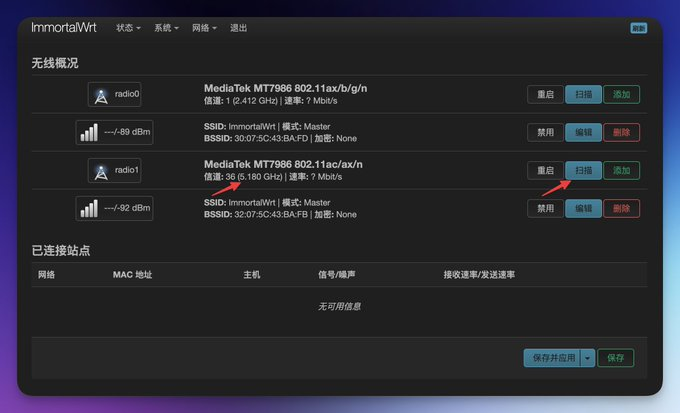
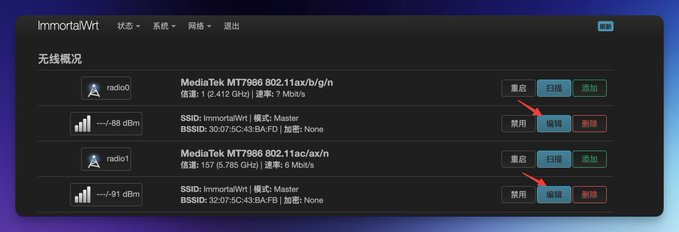
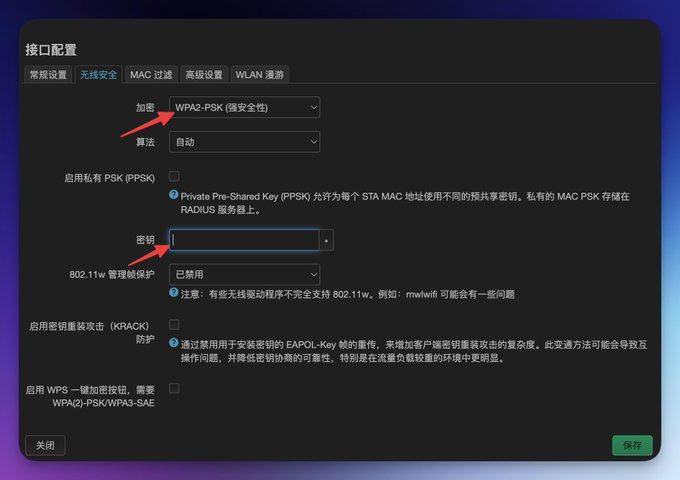
A repeater or secondary-router layout can introduce double NAT, competing DHCP, DNS leaks, MTU problems, or reduced wireless throughput. Confirm which device supplies DHCP and DNS, and test both local and Internet routing.
3. Install OpenClash
After basic Internet access works:
- Open
System → Software. - Refresh package lists.
- Search for
OpenClash. - Review the repository, package signature, version, dependencies, and free flash space.
- Install the package.
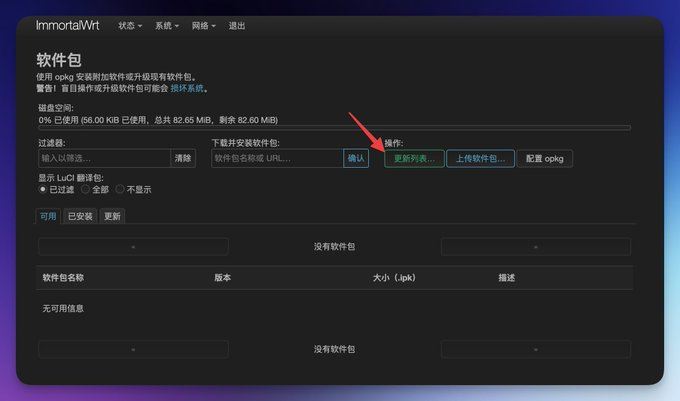
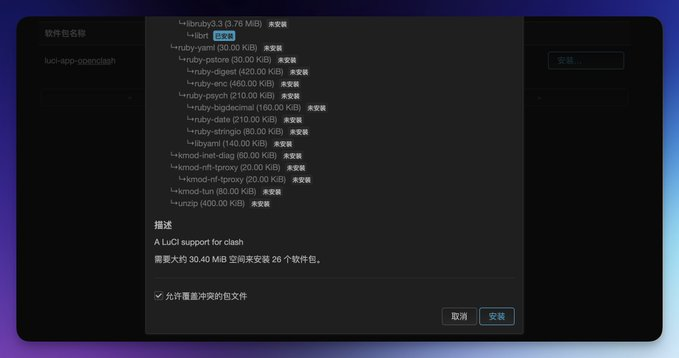
If the page times out, do not assume installation succeeded. Check the package manager output and logs. Signing out and in again can refresh the LuCI menu when the package is installed correctly.
4. Install a compatible core and import a subscription
Open Services → OpenClash. The source follows the first-run prompt and selects a Meta-family core. Choose a core supported by the installed OpenClash release and the router's CPU architecture; “second option” is not a universal rule.
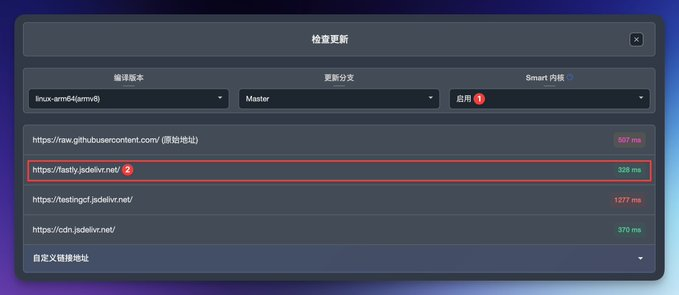
In the profile subscription section, add the provider subscription URL and update the profile list.
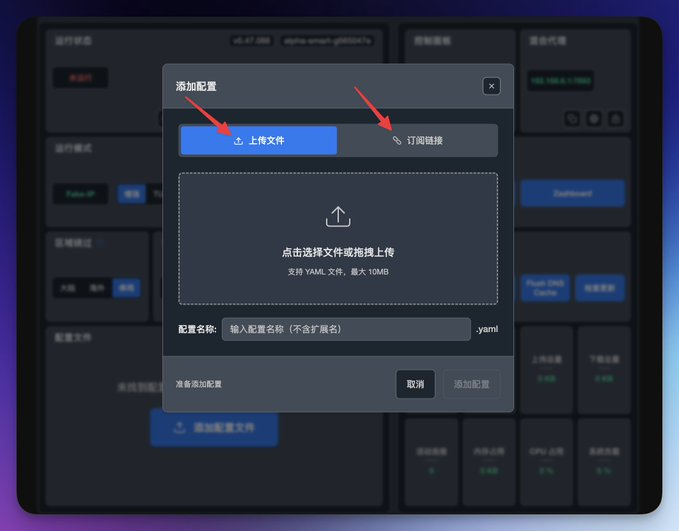
A subscription URL is a credential. Keep it out of screenshots, logs, public configuration repositories, DNS query strings, and untrusted conversion services.
5. Start and verify
Enable OpenClash and allow the core to restart.
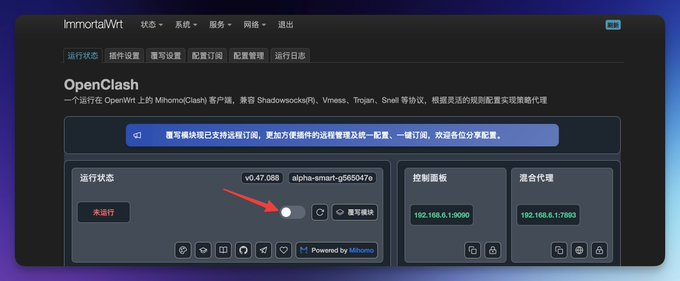
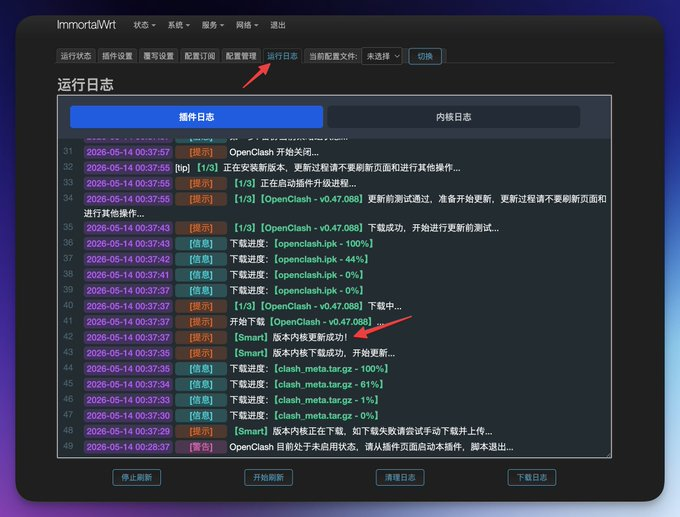
Review the logs for errors:
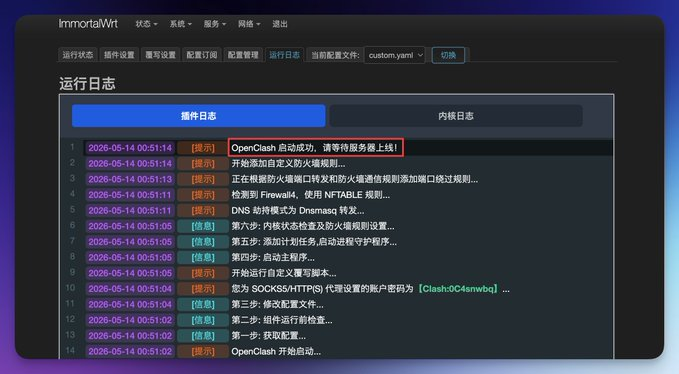
Then verify more than whether one page opens:
- domestic and international routing follows the intended policy;
- DNS uses the intended resolvers without loops or leaks;
- IPv4 and IPv6 behave as expected;
- devices without client software use the router path;
- local printers, casting, and private services remain reachable;
- failover and reboot recovery work;
- CPU, memory, temperature, and throughput remain acceptable.
Troubleshooting checklist
The author bricked an older router during the work and ultimately replaced it. The practical lessons were:
- Exact U-Boot match: confirm model, hardware revision, image source, checksum, and partition target.
- Reset recovery depends on the bootloader version: the source holds Reset before applying power. Check the installed version's timing and recovery requirements; a damaged bootloader may prevent web recovery.
- Addresses: the stock source interface used
192.168.0.1; the installed build used192.168.1.1. - Missing OpenClash menu: refresh the login, but also verify package and dependency status.
- Core download failure: confirm basic routing, DNS, date and time, repository access, architecture, and storage.
- No Internet after relay setup: check DHCP ownership, gateway, DNS, subnet conflicts, and double NAT.
Frequently asked questions
How is this different from a typical consumer router?
A supported OpenWrt-family device can install packages such as OpenClash and apply network policy for downstream devices. A closed stock router may not expose that capability.
Is ImmortalWRT always better for a user in China?
No distribution is universally best. ImmortalWRT may offer useful localization, mirrors, packages, or device support, while upstream OpenWrt may have different release and support properties. Use the build with trusted support for the exact hardware and required functions.
Can the device be bricked?
Yes. Preventive steps include:
- use an image for the exact model and revision;
- verify hashes and trusted instructions;
- inspect the actual MTD layout;
- back up every partition off-device, including Factory, BL2, and FIP, and verify sizes and hashes;
- know the serial or external-programmer recovery process;
- maintain stable power.
A complete backup does not guarantee recovery. Damaged BL2/FIP may prevent Reset or web recovery and require UART, a compatible mtk_uartboot setup, or an external programmer and specialist skills. mtk_uartboot does not support devices with secure boot enabled. Verify the exact device's recovery requirements before writing flash.
What if OpenClash is not visible?
Sign out and back in or clear the LuCI cache, then confirm the package and dependencies are actually installed. Inspect logs for a failed installation.
Primary or secondary router?
A primary router provides the clearest policy control but requires migrating the home topology. A secondary router or repeater changes less but can add double NAT, DNS, DHCP, roaming, and performance tradeoffs. The source demonstrates the latter.
Related guides
- Proxy-service reviews
- Advanced Clash rule configuration
- Mobile setup for Android and iOS
- Desktop setup for Windows and macOS
- Clash Meta setup on Android
- Shadowrocket setup on iOS
Scope
This is a translation of a dated, model-specific installation record. Firmware, bootloaders, packages, and links can change. Verify current authoritative instructions for the exact device before modifying flash.