
Shadowrocket Download, Installation, and Subscription Guide (2026)
Shadowrocket is a rule-based proxy client. It does not supply servers or a proxy service. You need a compatible subscription or server configuration to connect.
Official download: Shadowrocket on the U.S. App Store. Apple's listing and public lookup interface, checked on October 1, 2026, show version 2.2.92, a price of US$2.99, iOS 13 or later, and developer Shadow Launch Technology Limited. Store availability and prices can change; use your account's current checkout information.
Before purchasing
If you prefer a free client, see the Clash Mi for iOS guide. If you already own Shadowrocket, follow the installation, subscription, and troubleshooting steps below.
Already installed the app but have no servers? Read the Shadowrocket subscription selection notes to compare formats, payment periods, and risk records. With an existing subscription, jump to the import steps.
Identify the official interface
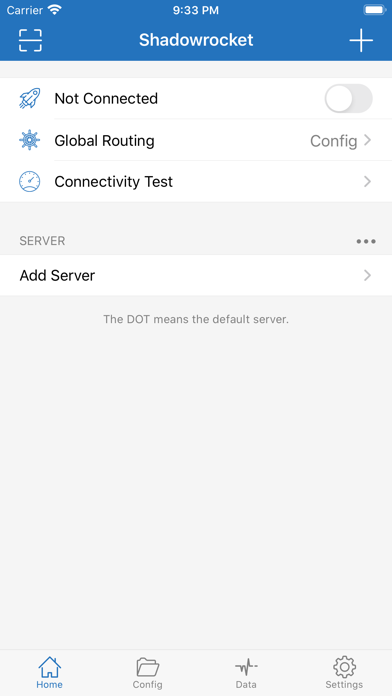
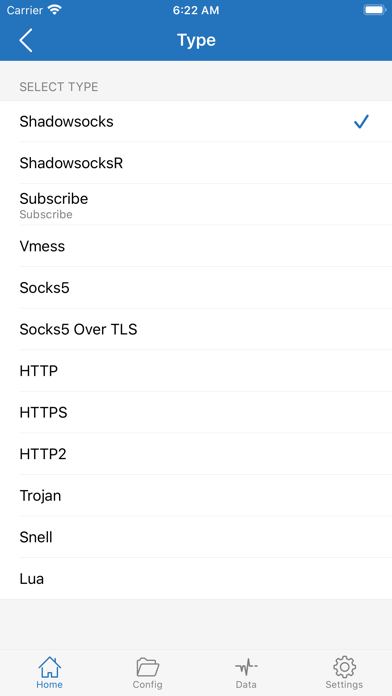
These images were taken from Apple's official listing during the August 3, 2026 documentation review. The layout may change in later versions; adding a server and selecting the Subscribe type are the relevant steps.
1. Download and install
- Open the official App Store listing with an Apple Account you own. Its store region must offer the app.
- Check the name, rocket icon, and developer Shadow Launch Technology Limited. Purchase the app if needed, or download it again with the account that already owns it.
- Install and open the app. Allow iOS to add a VPN configuration when enabling your first connection.
An Android APK advertised as “Shadowrocket” is not the Apple App Store app described here. Android users can use the Clash Meta for Android setup guide.
Apple's public lookup currently does not return this app for the mainland China store. If you temporarily use a shared account, sign in only from the App Store profile screen, never under the device's Settings or iCloud. The shared Apple ID page explains availability and lockout risks. Your own account is preferable for continued use and updates.
2. Import a subscription
- Open Shadowrocket and select + at the upper-right.
- Set Type to Subscribe.
- Paste the complete subscription address into URL and give it a recognizable name.
- Select Done to save it.
- Update the subscription from the main screen to retrieve its servers.
A subscription URL is an account credential. Do not post it publicly or submit it to an unknown online converter. If you do not yet have a subscription, consult the Shadowrocket-compatible subscription and plan comparison. Try a short plan before committing to a long purchase.
3. Select a server and connect
- Choose a server that responds normally.
- Turn on the switch at the top of the main screen.
- Approve the first VPN configuration using Face ID, Touch ID, or your device passcode when requested.
- Open the service you intend to use and test it directly.
A latency or connectivity result does not establish that every website, video service, or AI service will work.
4. Choose a routing mode
- Config: Use rules to select which traffic is proxied; suitable for ordinary use.
- Proxy: Proxy most traffic; useful for briefly checking whether routing rules cause a failure.
- Direct: Bypass the proxy to compare with the local network.
If a site fails in Config mode, temporarily compare it with Proxy mode before changing your rules.
5. Troubleshoot common problems
| Problem | First checks |
|---|---|
| Subscription update fails | Copy the current URL again; check for spaces, truncation, or expiry |
| No servers after import | Confirm the Subscribe type and the provider's Shadowrocket-compatible format |
| Server selected but no connection | Try other locations and compare Config with Proxy mode |
| Repeated timeouts | Restart the VPN, compare Wi-Fi with mobile data, and update the subscription |
| Only some websites fail | Compare routing modes, then inspect DNS and rules |
| App update requests another account | Use the account that originally obtained the app. Before considering a reinstall, export subscriptions and configurations and confirm that an account you own can download it; a paid app may require another purchase |
6. Protect account information
- Keep shared Apple IDs out of device Settings and iCloud.
- Keep subscription URLs and QR codes out of public screenshots and chat messages.
- Crop account names, balances, and personal information from screenshots before asking for help.
- Avoid relying on unknown public servers for sensitive work or payments.
7. Further reading
- Shadowrocket Rules and Split Routing
- Clash Mi for iOS
- Mobile Access Guide for Android and iOS
- Proxy-Service Reviews and Risk Records
Evidence scope
Version, price, and developer details were checked against Apple's listing on October 1, 2026. The retained interface images come from the August 3 documentation review. This article documents official sources rather than a device test conducted by this site.