
HyperOrbit Setup Guide for Android, iPhone, iPad, Mac, and Apple TV (2026)
HyperOrbit is a proxy client built around its developer's HyperCore engine. It supports VLESS, VMess, Shadowsocks, Trojan, AnyTLS, Hysteria2, and TUIC. The official stores currently offer versions for Android, iPhone, iPad, Apple TV, and supported Apple Silicon Macs.
HyperOrbit is a client. It does not supply proxy nodes; bring a compatible subscription or individual node.
Need a subscription?
Consult the proxy-service selection and review guide before returning to the client setup.
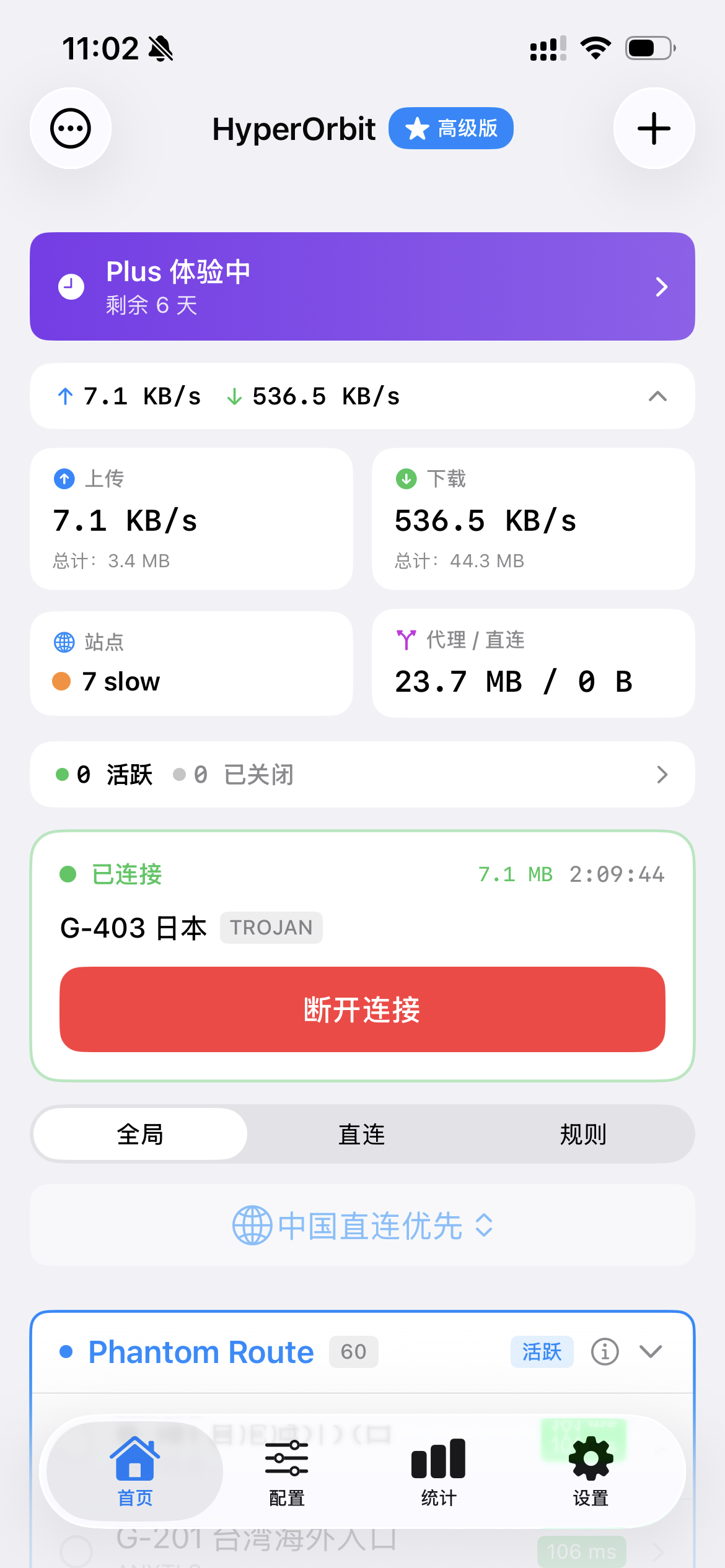
The existing screenshots in this guide are from the iPhone app. Android and Apple TV layouts and labels can differ by version.
Features highlighted by the source
HyperCore and protocol support
The developer describes HyperCore as a C++ engine compatible with Xray configurations and recent Clash node imports. It supports VLESS with Reality, VMess, Shadowsocks, and Trojan. Actual resistance to identification depends on the node configuration and network conditions.
The original iOS material reports approximately 5 MB of VPN-extension memory use at startup, under 15 MB under load, and more than 6.5 Gbps in a local iperf3 test between a directly connected Mac and iPhone. These are developer figures, not independent tests or a guarantee of internet throughput.
Several import methods
The mobile app can import a subscription URL, scan a QR code, read a node URI from the clipboard, or add a node manually. The Apple TV listing specifies QR-code and text input.
Rule-based routing
Its built-in Rule mode is intended to send local traffic directly and selected external traffic through the proxy.
iCloud synchronization
On Apple devices, subscriptions, nodes, and settings can be synchronized through iCloud. This step does not apply to Android.
Node latency tests
The app can test all imported nodes and show their TCP latency.
Current store pricing
As of August 15, 2026, the U.S. App Store lists USD 0.99 monthly, USD 1.99 yearly, and a USD 9.99 lifetime purchase, with a seven-day free trial for new users. Google Play also labels the Android app as offering in-app purchases and a seven-day trial; check the Android checkout screen for the current local price.
The Android material supplied on July 21 called that version a free preview. It should not be treated as a current promise of free access. Prices, trials, and regional availability can change, so verify the store shown for your account before subscribing.
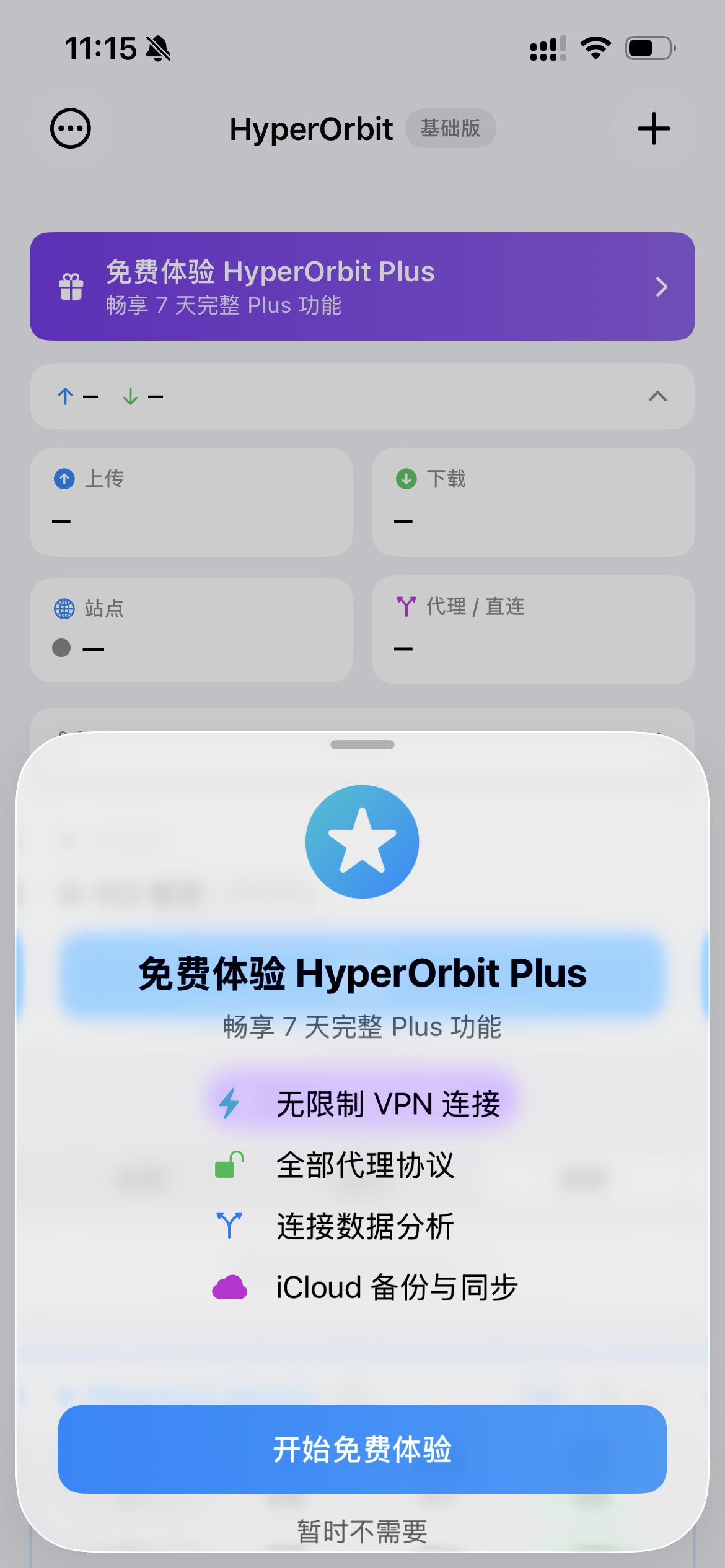
The original TestFlight beta link currently says that the beta is full. Do not rely on it as a stable free-download route.
Requirements listed by the source
| Platform | Minimum version |
|---|---|
| Android | 8.0 or later, as listed in the supplied Android guide |
| iOS | 16.0 |
| iPadOS | 16.0 |
| macOS, Designed for iPad | 13.0 |
| tvOS | 17.0 |
You also need:
- a compatible proxy subscription URL or node URI;
- for Apple devices, an Apple ID for a region where the app is available;
- for Android, access to Google Play.
1. Install
Use an official store rather than an unknown repackaged download.
iPhone and iPad
Search for HyperOrbit in a region where it is listed or use the official page above. It may not appear in mainland China's store; rely on the current store result for your account.
Android
Search Google Play for HyperOrbit - Fast VPN & Proxy or use the official listing above. The supplied guide specifies Android 8.0 or later; if Google Play marks the current device incompatible, follow the store's current compatibility result. The website's Android button currently leads to Google Play.
Apple TV
The App Store currently lists Apple TV compatibility with tvOS 17.0 or later. Search for HyperOrbit in the Apple TV App Store. The official tvOS listing specifies subscription import by QR code or text input and also lists iCloud synchronization with Apple devices.
Mac
HyperOrbit runs as a Designed for iPad app on an Apple Silicon Mac, with M1 or later listed by the source. It does not require a separate Mac package.
Open the App Store on the Mac, use a supported store account, and install the iPad app. The Mac version also lists:
- TUN mode, under Settings → Mac Settings;
- a configurable local SOCKS5 proxy for individual applications;
- keyboard, mouse, and resizable-window support.
The source states that Intel Macs are not supported. If macOS requests permission for the App Store app, review it under System Settings → Privacy & Security.
2. Import nodes or a subscription
The steps below primarily describe the mobile apps. Android labels are translations of the supplied Chinese guide and can change by version. On Apple TV, use a QR code, text input, or iCloud synchronization.
Method 1: subscription URL
This imports all nodes supplied by a provider and can be refreshed later.
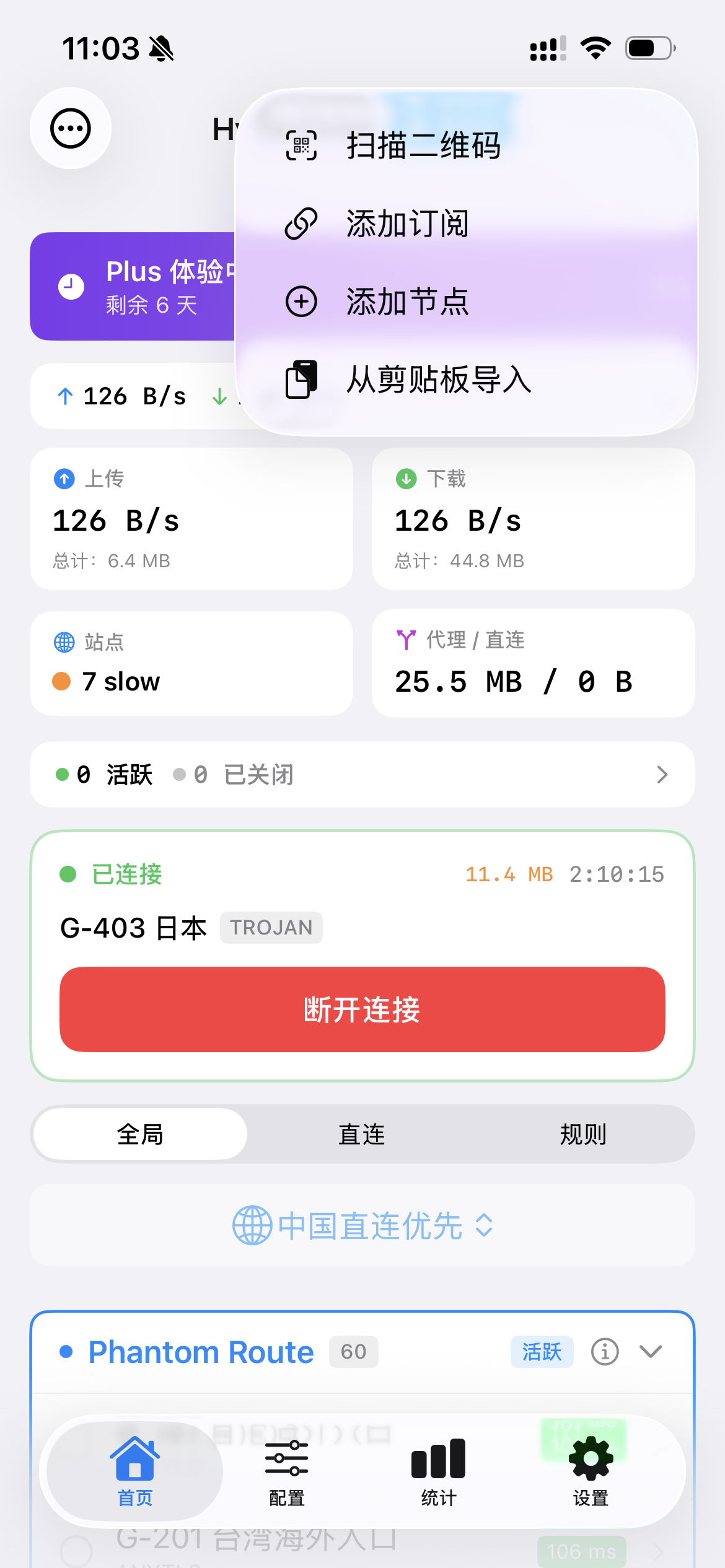
- Select + on the home screen.
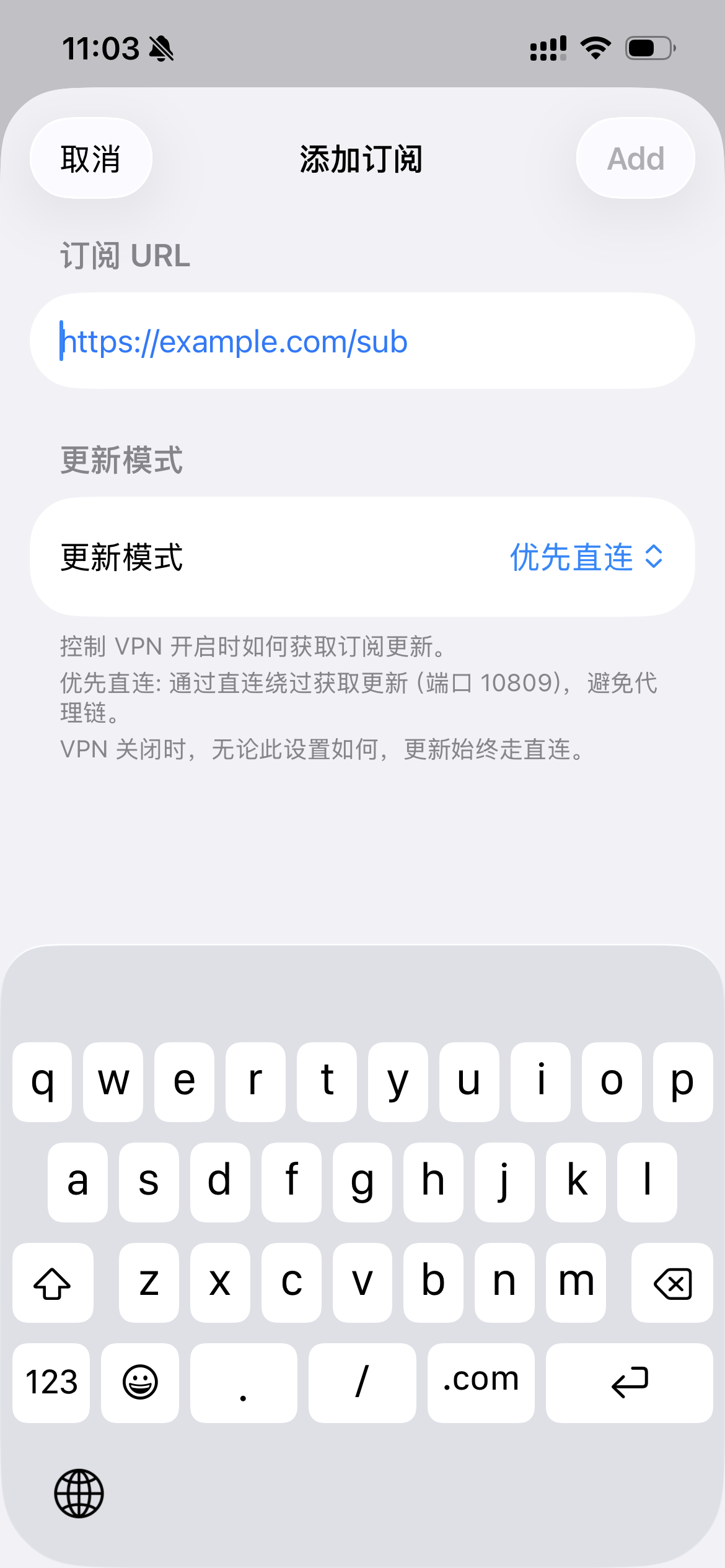
- Choose Add Subscription.
- Paste the subscription URL.
- Confirm the import.
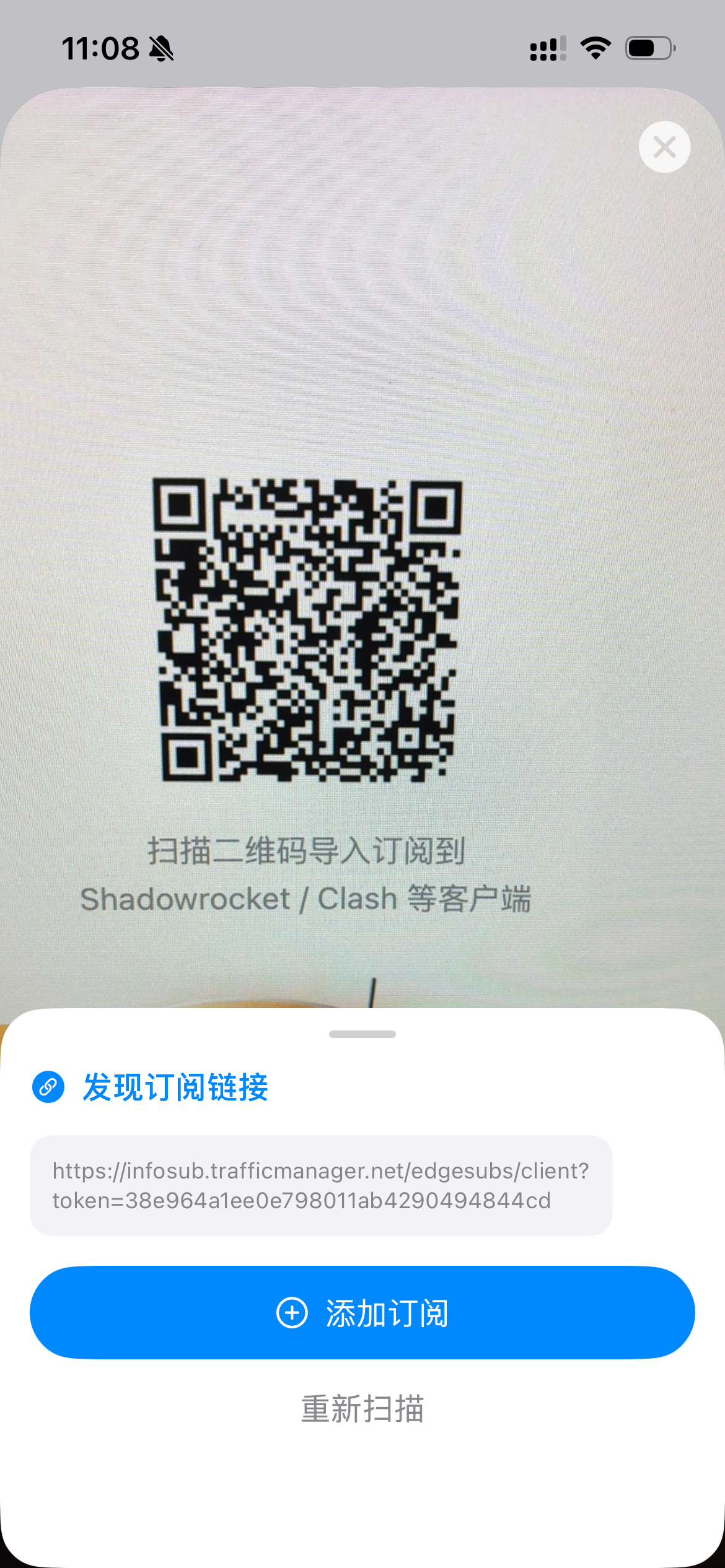
Method 2: scan a QR code
- Select +.
- Choose Scan QR Code.
- Scan a node or subscription QR code that you trust.
Method 3: import from the clipboard
Copy a node URI such as vless://... or vmess://..., then:
- select +;
- choose Import from Clipboard;
- review and confirm the imported data.
Method 4: add one node manually
If you have the server address, port, UUID, and protocol details:
- select +;
- choose Add Node;
- enter the parameters for the selected protocol.
WireGuard configuration import
The App Store 1.5.0 release notes list manual WireGuard setup, .conf file import, and wireguard:// link import, including batch import/export. On iPhone/iPad, choose the method matching your configuration; the exact entry point depends on the installed version. These notes do not establish a verified button-by-button walkthrough.
The official Google Play description also lists WireGuard support, but does not establish the same file/link import controls on Android. Check Android and Apple TV interfaces separately rather than assuming they match the iPhone/iPad app. This is a review of official documentation, not hands-on app testing.
3. Connect
Select the intended node in the home-screen list, then select the connection button.
On the first connection:
- iPhone and iPad ask permission to add a VPN configuration; review it, allow it, and authenticate with Face ID or the passcode.
- Android asks permission to create a VPN connection. Review the app name and approve it. Disconnect another active VPN first if necessary.
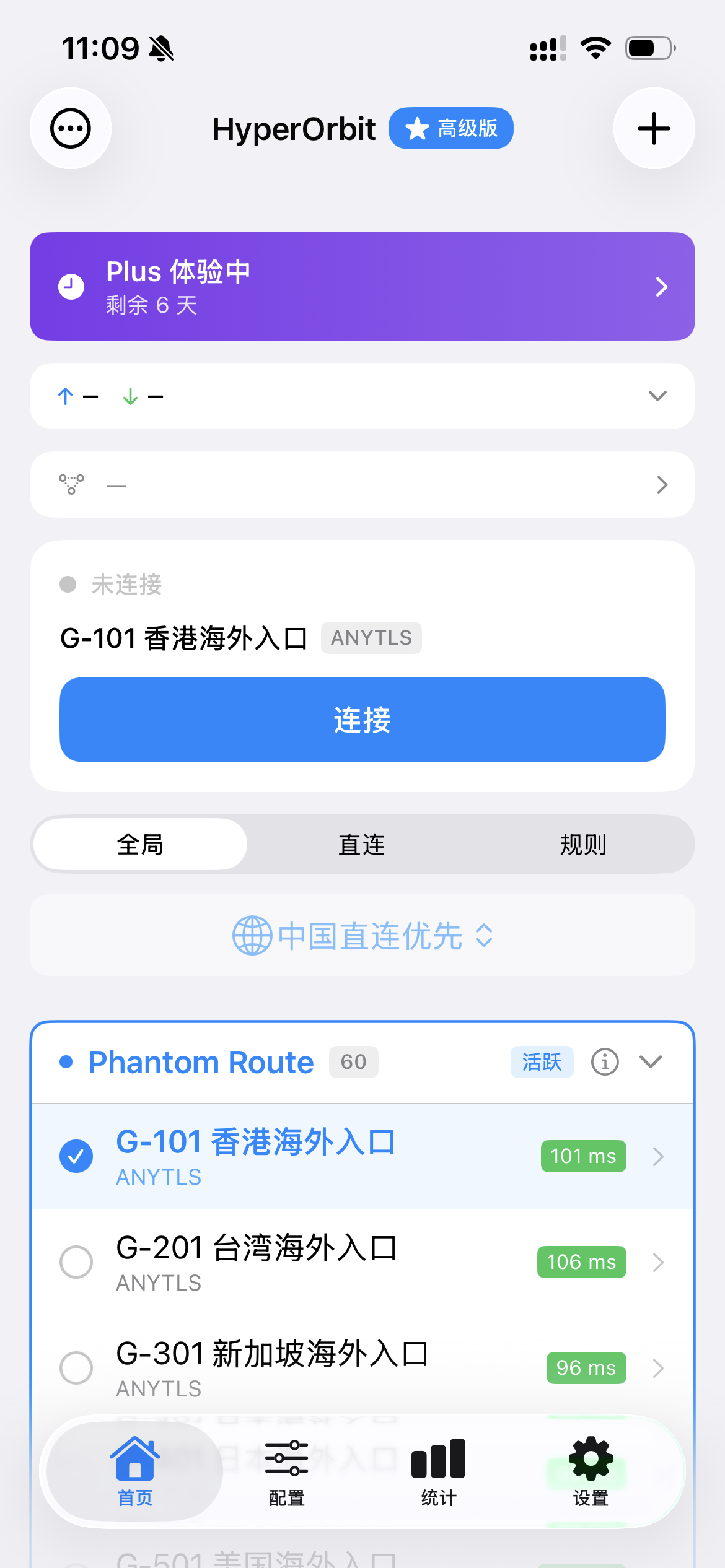
A VPN indicator appears while the connection is active.
4. Routing modes
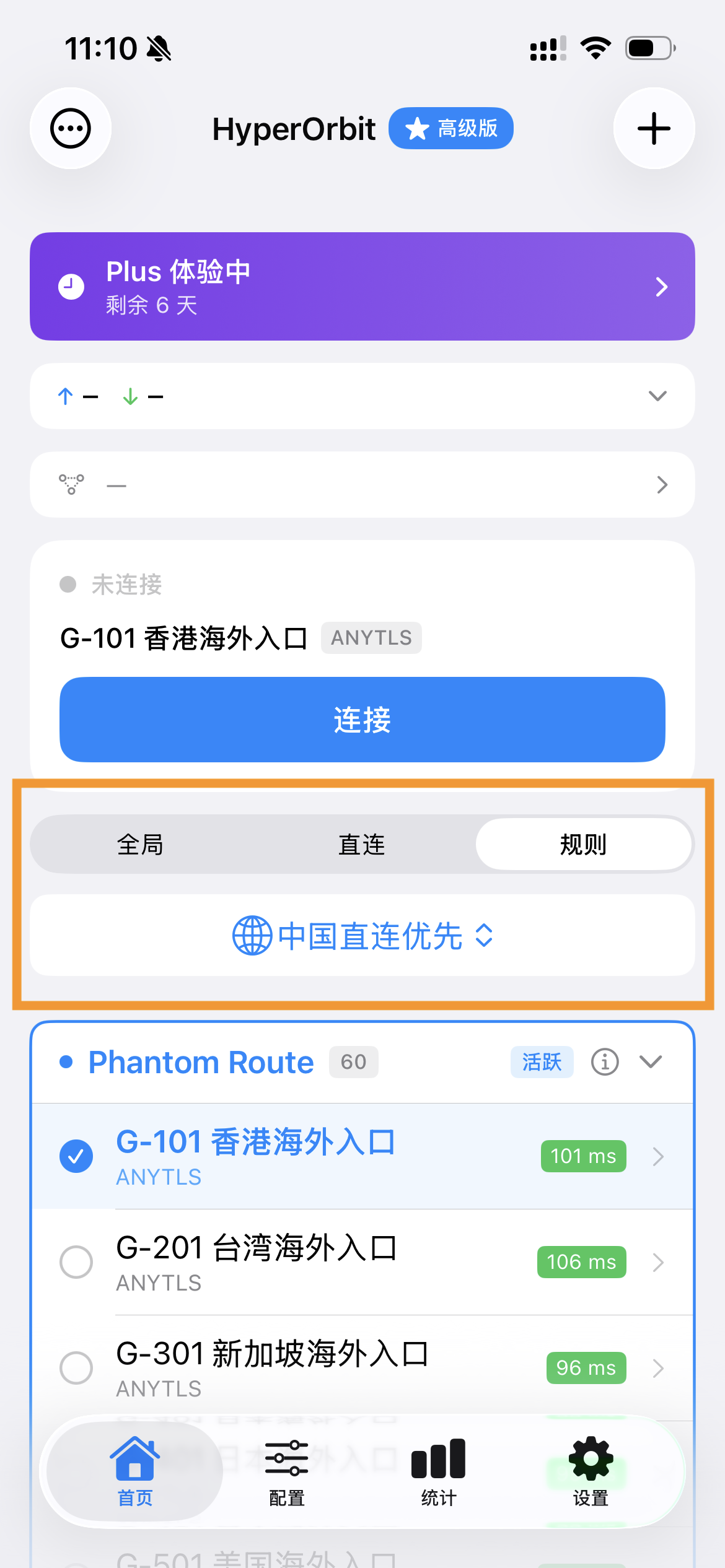
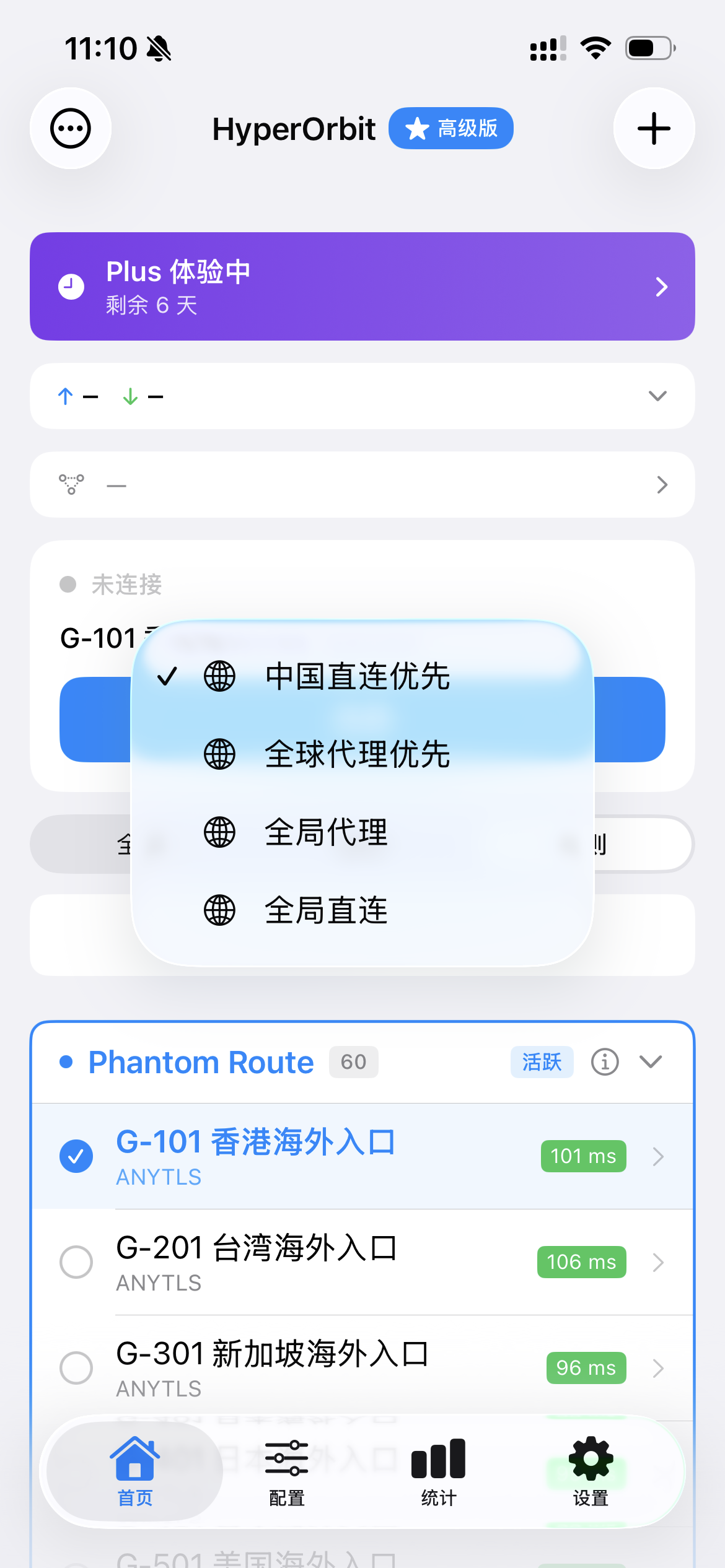
The version in the supplied guide describes the three routing outcomes below. In the August 2026 iOS 1.4.x release, the former Mode and Rule controls were merged into a single Route selector on the home screen. Android and other releases can place them differently.
| Mode | Behavior | Typical use |
|---|---|---|
| Rule | Selected external traffic uses the proxy; local traffic is direct | Regular use |
| Global | All supported traffic uses the proxy | Connectivity testing or a temporary all-proxy requirement |
| Direct | All traffic is direct | Temporarily bypass the proxy while keeping the VPN profile active |
Global can be useful for a brief connectivity test, while Rule is normally preferable for regular use. If the current app has no separate mode button, select the corresponding route in the Route selector.
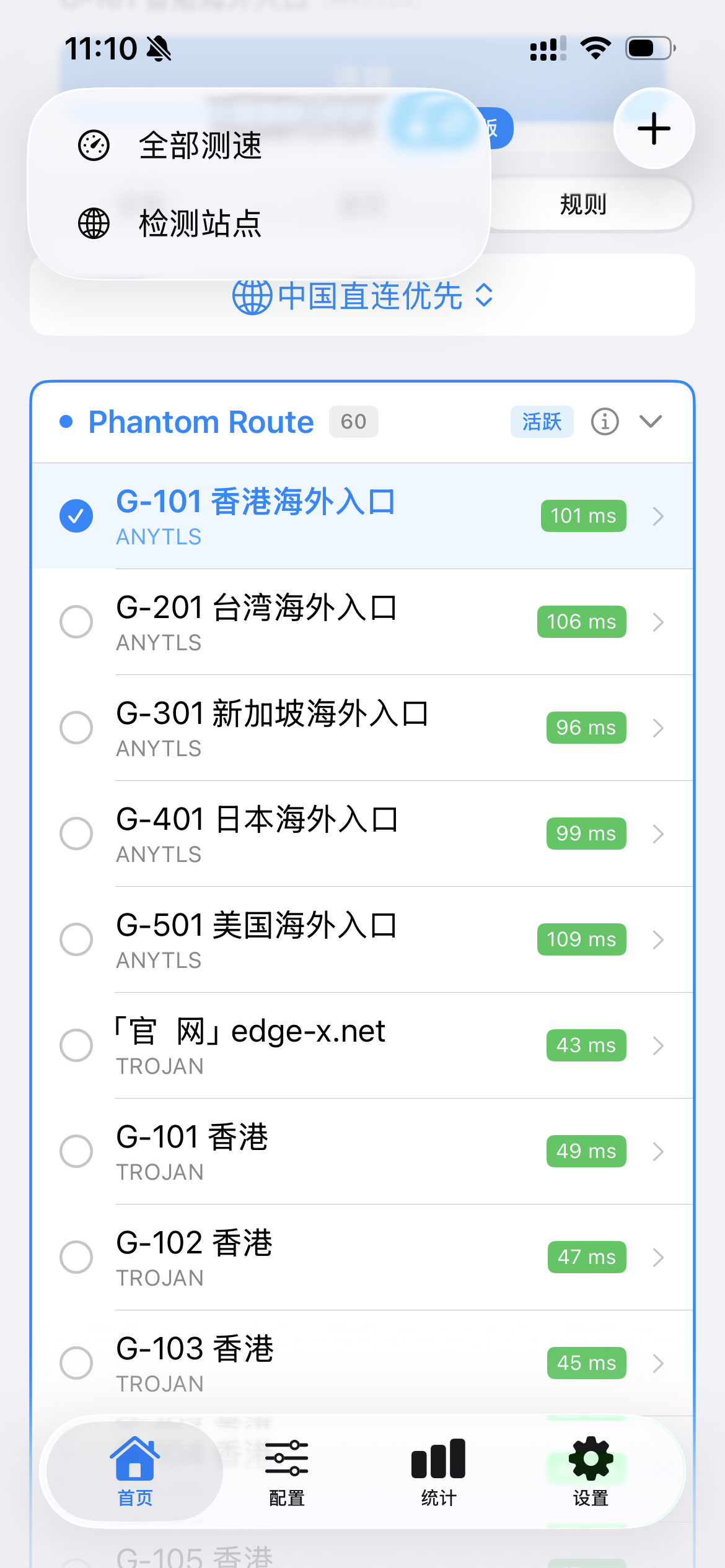
5. Test node latency
Select Test All on the home screen. HyperOrbit sends TCP latency tests and displays a result next to each node.
Low latency is one useful signal, but also test the actual application and sustained throughput before selecting a primary node.
6. iCloud sync on Apple devices
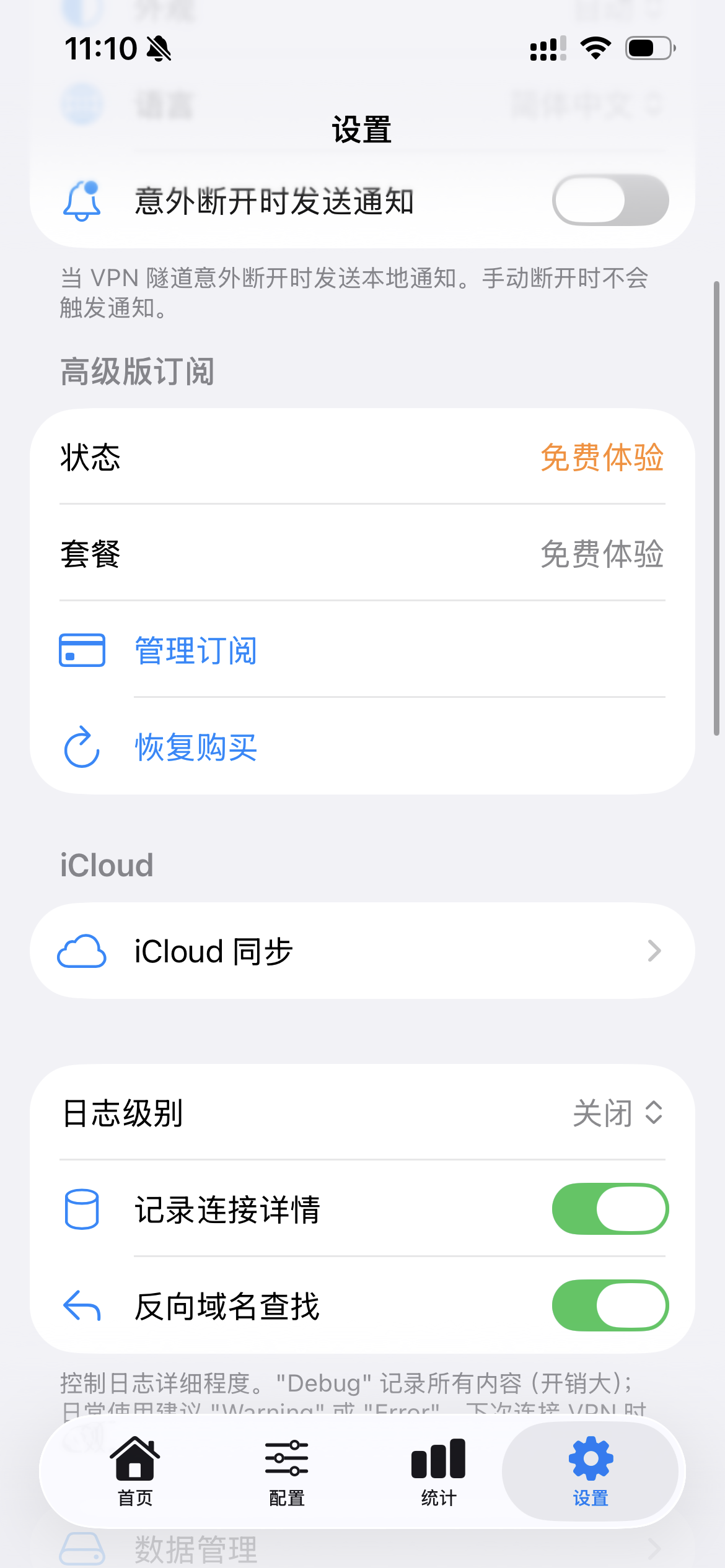
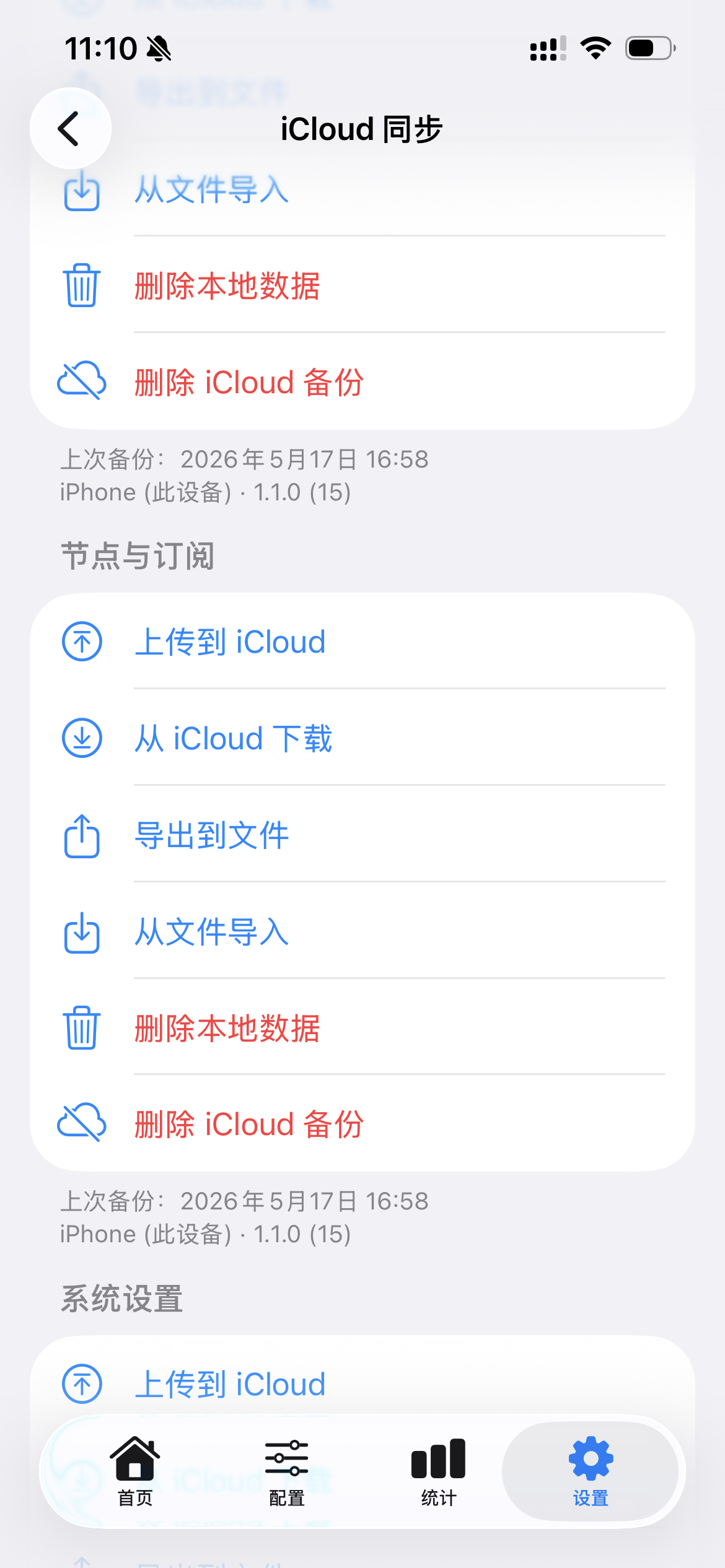
Open Settings → iCloud Sync and choose Upload All to iCloud.
On another device using the same iCloud account, open the same screen and choose Download All from iCloud to restore subscriptions and nodes.
7. Advanced features
The features below come primarily from the mobile and Mac materials. Check the current tvOS build for the features actually exposed on Apple TV.
Active connections
Select the active-connection count on the connection card to inspect:
- target domain or IP;
- selected proxy node;
- upload and download traffic;
- active or closed status.
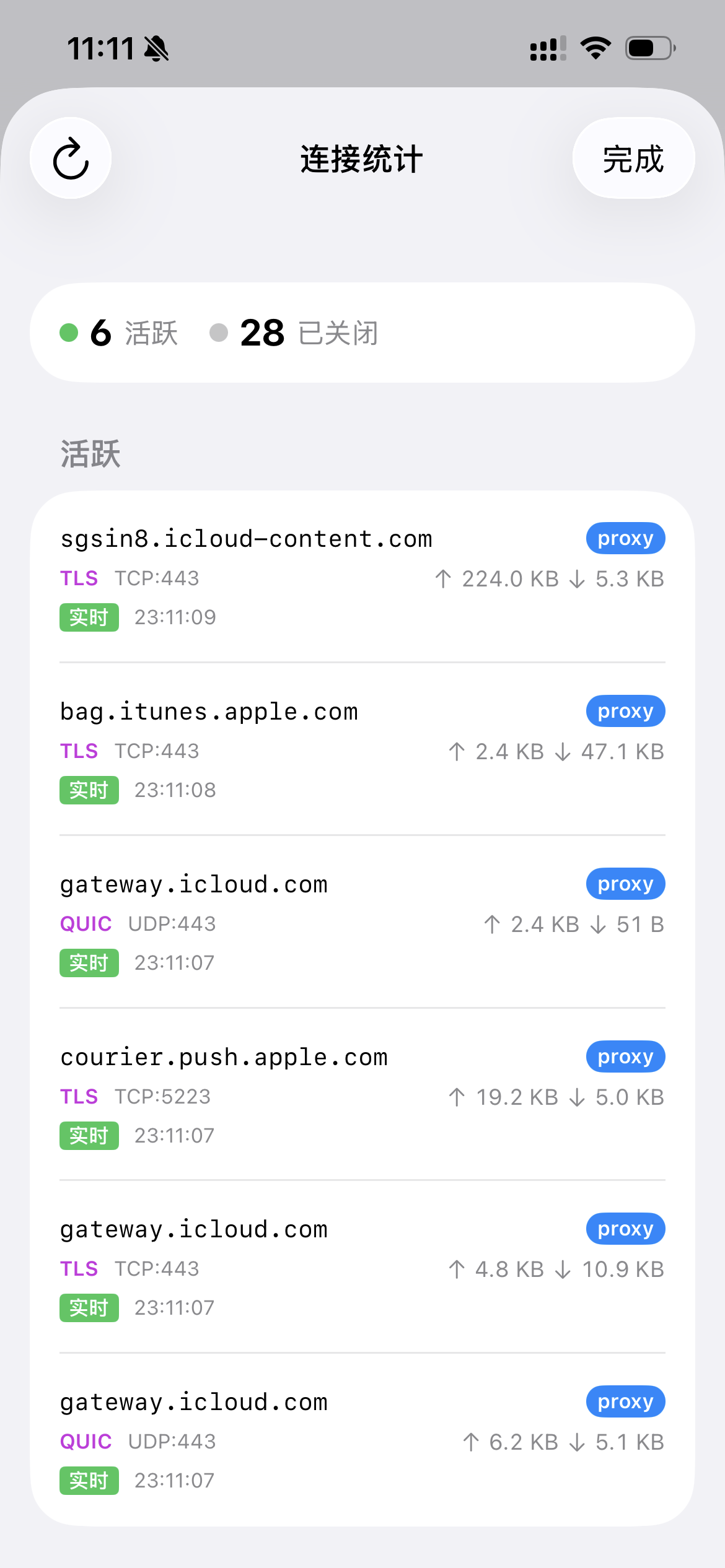
This can help determine which app is using data and whether a request followed the direct or proxied route.
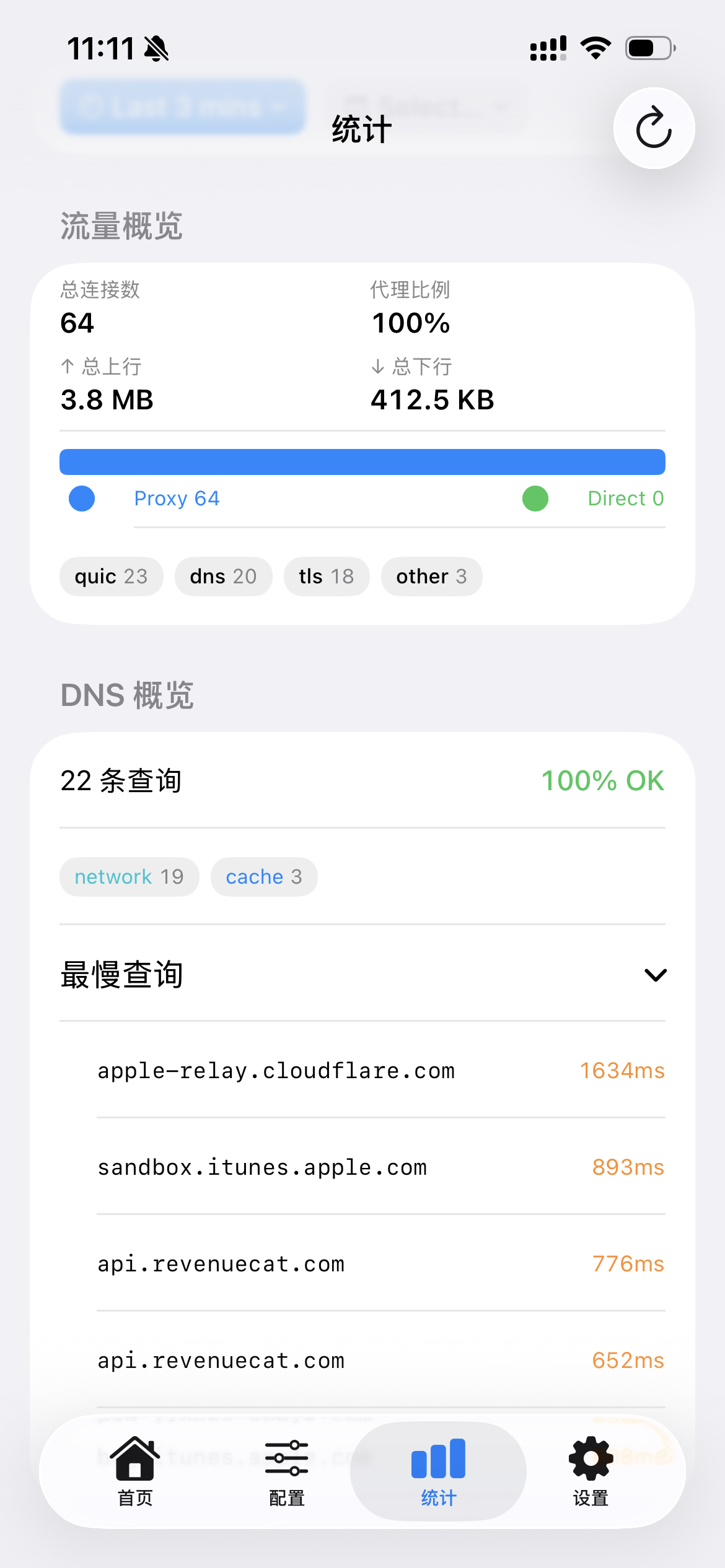
Traffic statistics and slow connections
The Statistics page aggregates connections by domain:
- Slow DNS resolution: A much slower first connection can indicate DNS lookup overhead. Test another DNS configuration or routing rule before changing it permanently.
- Consistently slow domains: Sort by connection time to identify requests that remain slow through the proxy.
- Direct versus proxied traffic: Compare how the current rules divide connections.
Frequently asked questions
The network does not change after connecting
Check whether the mode is Rule or Global. Test Global mode temporarily. If Global also fails, select another node or contact the provider because the node itself may be unavailable.
Subscription import fails
- Open the URL in a browser to verify that it responds.
- Some providers require a particular
User-Agent. HyperOrbit lists this under Settings → Subscription User-Agent. Examples in the source includeclash-verge/1.0.0andv2rayNG/1.8.0. - If the subscription domain is blocked on the current network, use another temporary connection before importing.
The iOS connection closes immediately
iOS can terminate a VPN extension that exceeds its memory limit, commonly reported as approximately 50 MB.
- Reduce the number of simultaneously enabled custom profiles.
- Lower logging to
WarningorError; the source reportsNoneas the default.
The Android connection does not start or closes immediately
- Confirm that Android VPN permission is granted.
- Disconnect any other active VPN app.
- Lower logging to
WarningorError, then try again.
Does it work on a Mac?
The source lists support on an Apple Silicon Mac with M1 or later through the iPad app. The Mac interface adds TUN and local SOCKS5 settings. Intel Macs are listed as unsupported.
Does it work on Apple TV?
Yes. The current App Store listing supports tvOS 17.0 or later. The tvOS listing specifies configuration import by QR code, text input, or iCloud synchronization.
Is it available in mainland China's App Store?
As of August 15, 2026, the mainland China App Store page is unavailable. Use an Apple ID for a region where the app is listed. If necessary, first read the safety restrictions on the shared U.S. Apple ID page.
Must Android users download it from Google Play?
The official website currently directs its Android download button to Google Play, and the supplied material does not provide an official APK. Avoid third-party APKs unless the developer publishes a directly verifiable download.
Does HyperOrbit collect user data?
The website says the app does not log traffic. The Google Play developer disclosure says it does not collect or share data. Apple's App Store privacy label says usage and diagnostic data may be collected but not linked to identity. These are developer disclosures, not an independent audit. Review the current store labels, privacy policy, and system permissions if this matters to your threat model.
Supported protocols
| Protocol | Transports or notes listed by the source |
|---|---|
| VLESS | Reality, TLS, WebSocket, gRPC, HTTP/2 |
| VMess | TLS, WebSocket, gRPC, HTTP/2 |
| Shadowsocks | AEAD; ShadowsocksR also listed |
| Trojan | TLS |
| AnyTLS | Supported |
| Hysteria2 | Supported |
| TUIC | Supported |
| WireGuard | Listed by both App Store and Google Play; import methods depend on platform and version |
For project-specific support, use the official Telegram group.